> ## Documentation Index
> Fetch the complete documentation index at: https://support.reecost.com/llms.txt
> Use this file to discover all available pages before exploring further.
# New Sale
> How to create a new Sale or Invoice with reecost
Go to [https://v1-app.reecost.com](https://v1-app.reecost.com) and click
on [New Sale](https://v1-app.reecost.com/#/app/sales).
Click the **CRM Customer** input box to enter the customer details.
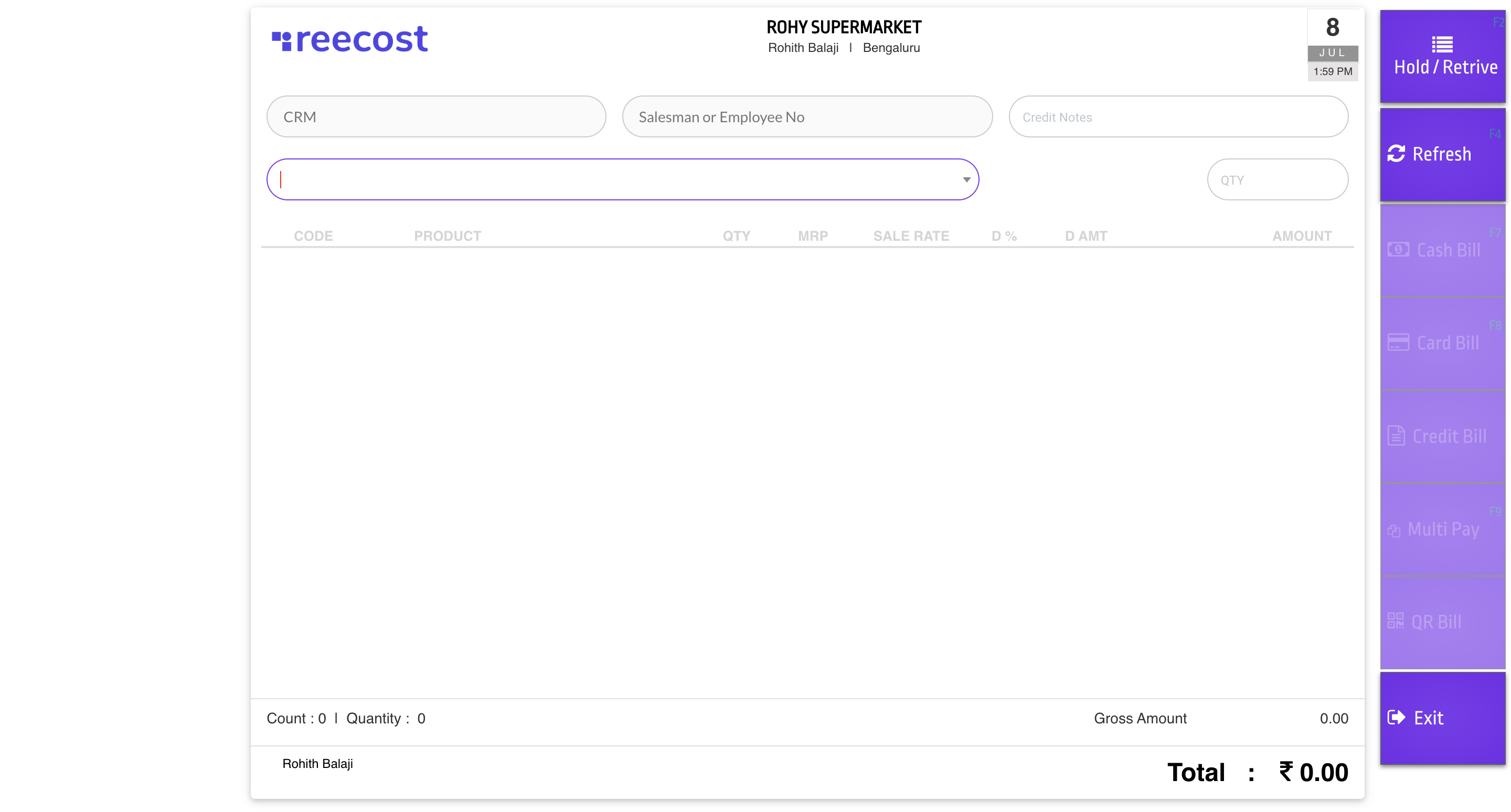 Click the *Product* input box to enter the product details as code, name based on the input it will filter.
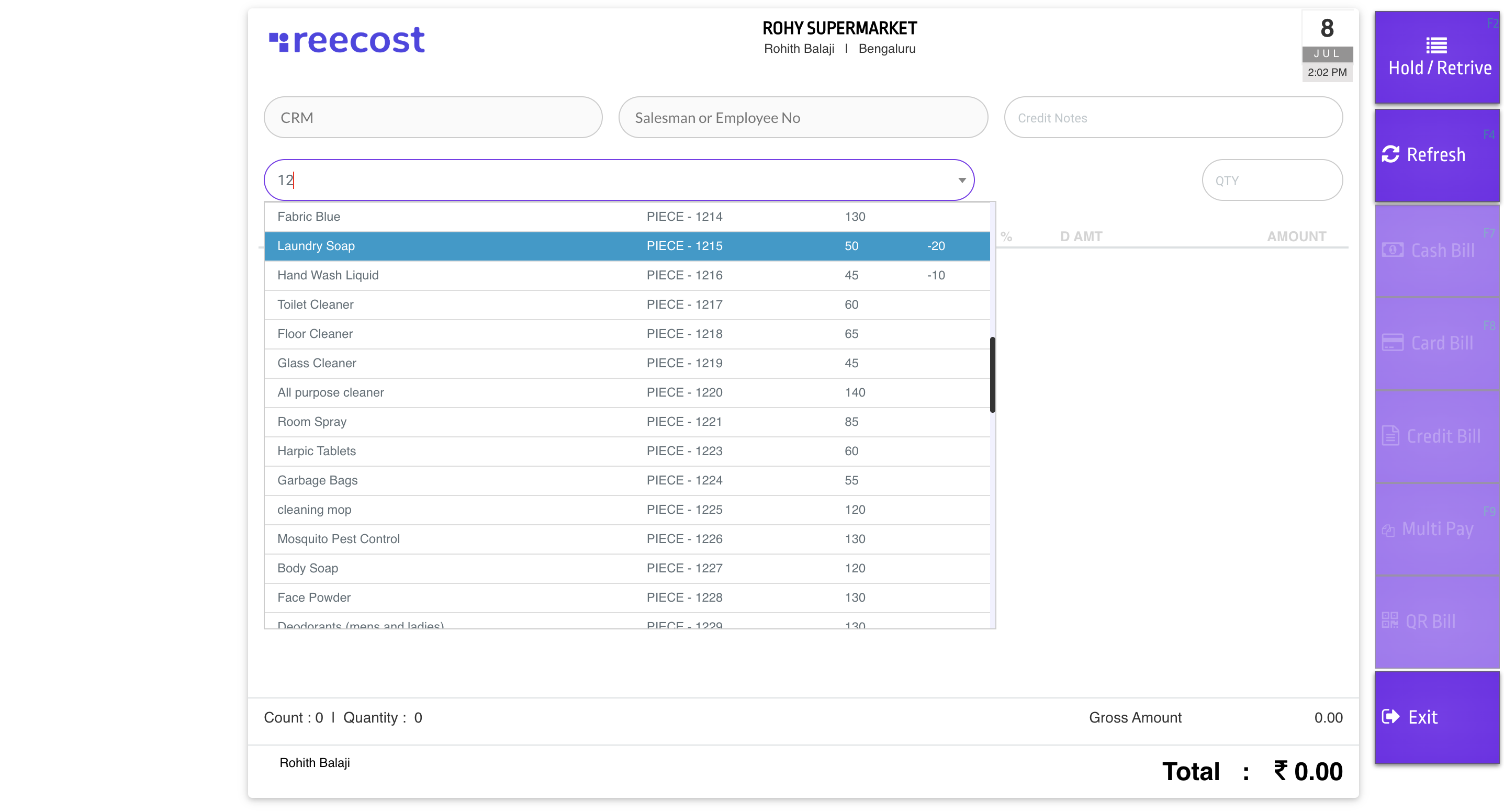 **After you have selected the product and you need to enter the quantity.**
Here you can see all the selected product and Gross Amount, Tax Amount, Round Off and Total Amount of the Sale
**After you have selected the product and you need to enter the quantity.**
Here you can see all the selected product and Gross Amount, Tax Amount, Round Off and Total Amount of the Sale
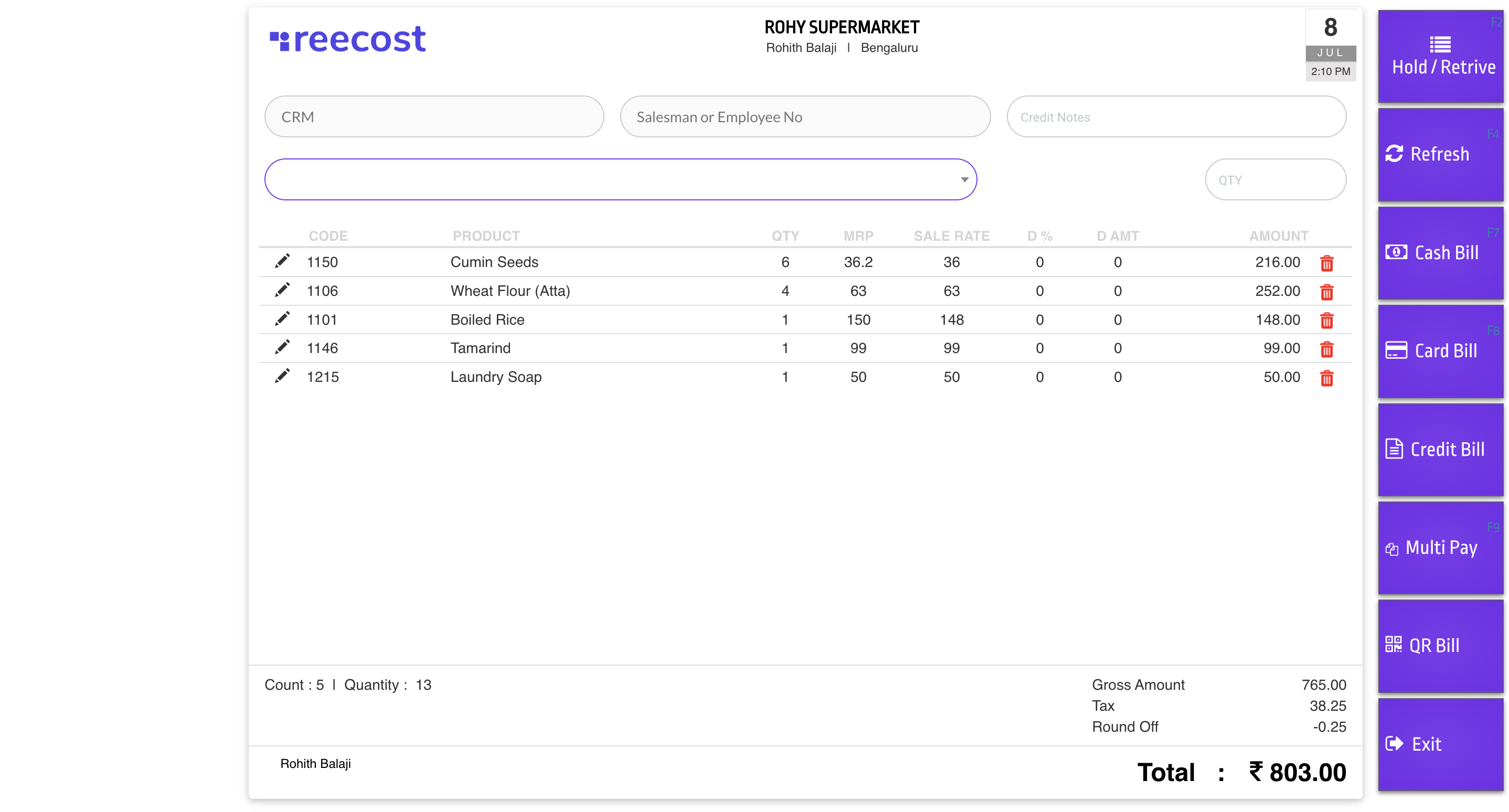 **Now you can proceed to collect the payment via Cash/Card/Crdit or you can collect via all the payment methods via Multipay**
Once you have completed the sale you can see the sales dashboard. [Dashboard](/workflow/dashboard).
**Now you can proceed to collect the payment via Cash/Card/Crdit or you can collect via all the payment methods via Multipay**
Once you have completed the sale you can see the sales dashboard. [Dashboard](/workflow/dashboard).